Console commands in Hytale open up virtually unlimited possibilities for managing the game world. From instant teleportation to spawning rare resources like thorium, a single line of chat solves problems that would normally take hours. For server administrators, commands become a tool for maintaining order and assisting creative players in constructing massive structures.
What are console commands?
Hytale console commands are text strings entered into chat with the “/” prefix that instantly activate various in-game actions. Administrative commands are used by server owners to manage the game when bugs, griefing issues, and item spawns occur. However, any player with the appropriate server permissions can use these commands as traditional cheat codes.
For example, the “/heal” command restores health in critical situations, as dying somewhere deep in a mine far from the spawn point is not the most pleasant prospect. Commands make survival less stressful and speed up the creation of interesting worlds for co-op play with friends.
Instant teleportation between players
The “/tp” command followed by a username instantly teleports the character to the selected player. The syntax is simple: “/tp username” sends to the specified person. To teleport another player to yourself, use the extended format “/tp username username,” where the first name denotes the target of the teleportation, and the second denotes the destination.
Spawn any items into your inventory
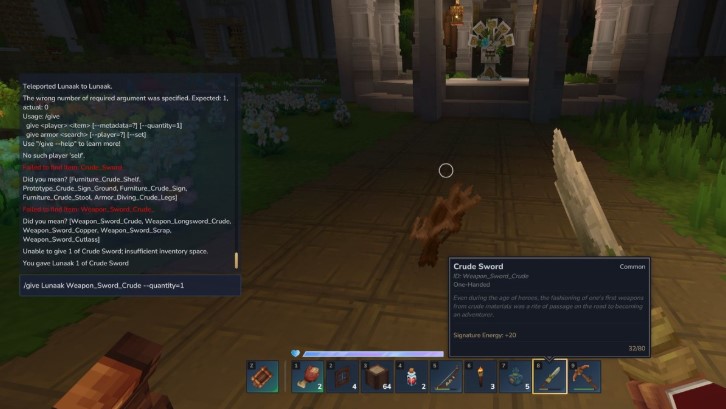
The “/give” command allows you to create any in-game item directly in your inventory. If you already have the desired item on hand, simply select it in your inventory and write down its ID under its name—this ID is specified in the command. A basic example would be “/give username Weapon_Sword_Crude -quantity=1,” where you can replace the weapon ID with any other item and change the quantity.
Time of day management
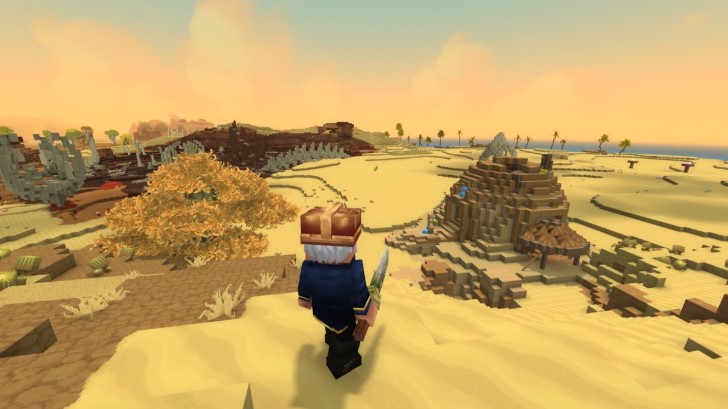
Changing the time in Hytale is done with the “/time set” command, specifying a number between 0 and 24. An alternative is the “/noon” command, which sets it to midday. Oddly, there are no separate commands for other time periods, so you’ll have to use numerical values for precise settings.
Setting up weather conditions
The “/weather” command requires a little practice to master, but becomes intuitive after a few uses. You specify the zone to change the weather, the weather type, and the intensity. The example command “/weather set Zone1_Cloudy_Medium” demonstrates the basic syntax that can be used as a starting point for other variations.
Activating Airplane Mode
Flight is unavailable in Survival Mode, but switching game modes solves this issue. The “O” key opens the mode-switching menu. In Creative Mode, double-tapping the spacebar activates flight—holding it raises the character, and CTRL lowers it. Pressing CTRL while on the ground deactivates flight mode.
Enabling God Mode
The “/op self” command activates God Mode for the current character. The game responds with the message “You’re now OP!” to confirm activation. Server administrators can apply the effect to another player with the “/op username” command. Entering the same command again deactivates God Mode.
Access the full list of commands
Every command in Hytale supports the “-help” flag for viewing usage examples and available subcommands. Entering a command with this flag displays detailed help on the syntax and usage variations. A full list of all console commands is available directly in-game via the help system.
Here are all the commands:
-
/ambience
-
/assets
-
/auth
-
/backup
-
/ban
-
/bindings
-
/block
-
/blockselect
-
/blockset
-
/blockspawner
-
/buildertoolslegend
-
/camshake
-
/checkpoint
-
/chunk
-
/clearblocks
-
/clearedithistory
-
/clearentities
-
/commands
-
/contractselection
-
/convertprefabs
-
/copy
-
/cursethis
-
/cut
-
/damage
-
/debug
-
/debugplayerposition
-
/delete
-
/deselect
-
/desyncdamage
-
/droplist
-
/echo
-
/editline
-
/editprefab
-
/emote
-
/entity
-
/environment
-
/eventtitle
-
/expand
-
/extendface
-
/fillblocks
-
/fillsignature
-
/flip
-
/fluid
-
/fragment
-
/gamemode
-
/give
-
/gmask
-
/heal
-
/help
-
/hide
-
/hitbox
-
/hitboxcollision
-
/hitdetection
-
/hollow
-
/hotbar
-
/hub
-
/hudtest
-
/importimage
-
/importobj
-
/instances
-
/interaction
-
/inventory
-
/itemstate
-
/kick
-
/kill
-
/landdiscovery
-
/land
-
/leave
-
/lighting
-
/log
-
/maxplayers
-
/memories
-
/messagetest
-
/model
-
/mount
-
/move
-
/neardeath
-
/network
-
/networkchunksending
-
/noon
-
/notify
-
/npc
-
/objective
-
/op
-
/packetstats
-
/packs
-
/particle
-
/paste
-
/path
-
/perm
-
/pidcheck
-
/ping
-
/play
-
/player
-
/plugin
-
/pos1
-
/pos2
-
/prefab
-
/prefabspawner
-
/recipe
-
/redo
-
/refer
-
/repairfillers
-
/replace
-
/repulsion
-
/reputation
-
/resetrotation
-
/rotate
-
/say
-
/scriptedbrushes
-
/selectchunk
-
/selectchunksection
-
/selectionhistory
-
/server
-
/setblocks
-
/setticking
-
/settimeandgohome
-
/settoolhistorysize
-
/shift
-
/sleep
-
/sound
-
/spawn
-
/spawnblock
-
/spawning
-
/spawnitem
-
/stack
-
/stash
-
/stop
-
/stresstest
-
/submerge
-
/sudo
-
/tagpattern
-
/time
-
/tint
-
/togglelockplacementoverride
-
/toggletmptags
-
/tp
-
/unban
-
/undo
-
/unstuck
-
/update
-
/updateselection
-
/validatecpb
-
/version
-
/viewport
-
/voidevent
-
/wait
-
/wall
-
/warp
-
/weather
-
/whereami
-
/whitelist
-
/who
-
/whoami
-
/world
-
/worldgen
-
/worldmap
-
/worldpath