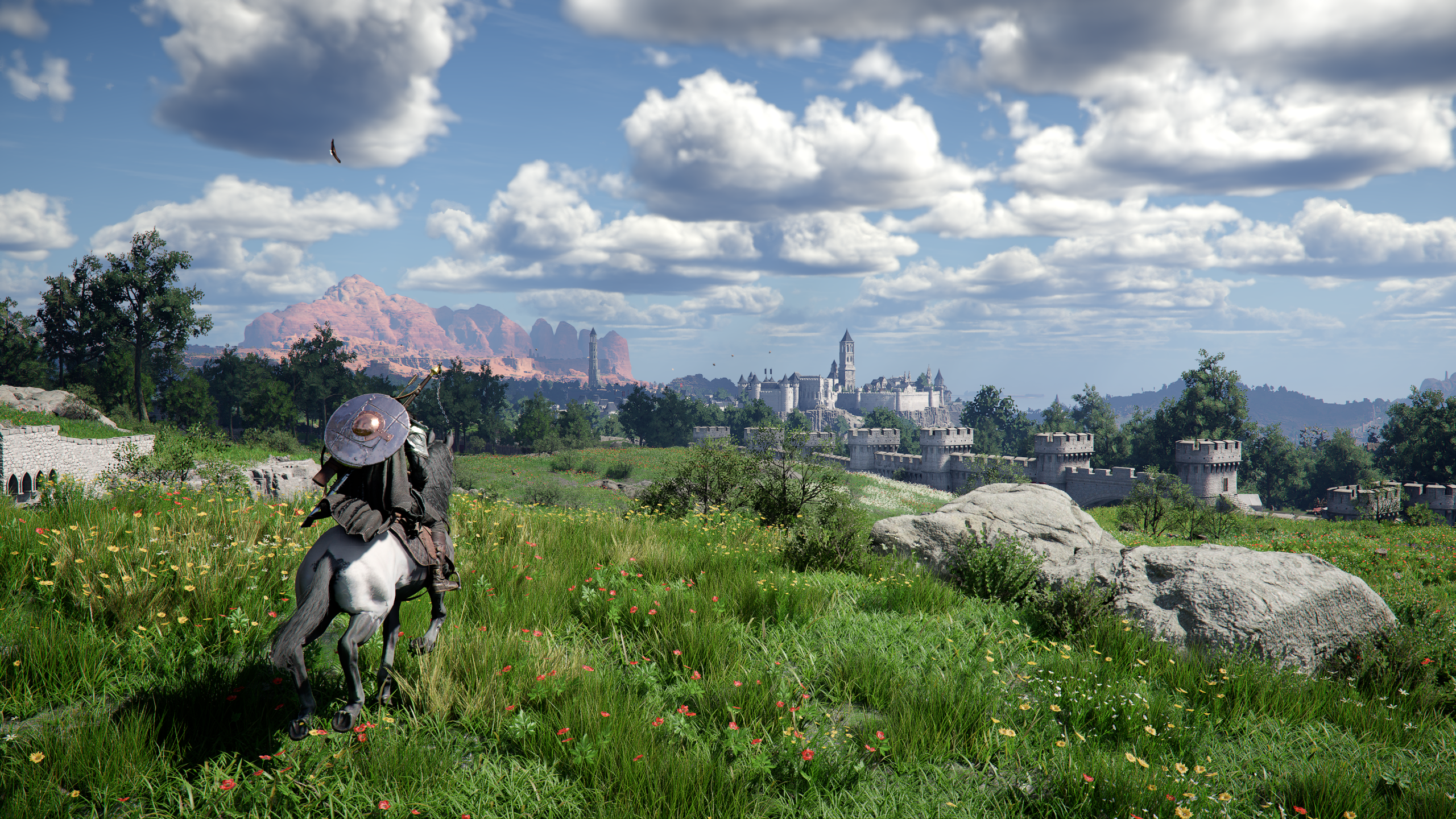
Crimson Desert can look impressive on both PC and PS5, but the default setup will not always give you the smoothest experience. Large environments, heavy visual effects, and fast combat can all affect responsiveness if your settings are not tuned properly. A few smart changes can make the game feel much cleaner without stripping away too much visual quality.
This guide covers Crimson Desert best PC settings players should use for stronger performance, along with the best settings for PS5 if you want smoother gameplay on console.
For a full overview of the game’s world, system, and mechanics, chcek out our Crimson Desert Complete Guide.
1. Crimson Desert Best PC Settings for Performance
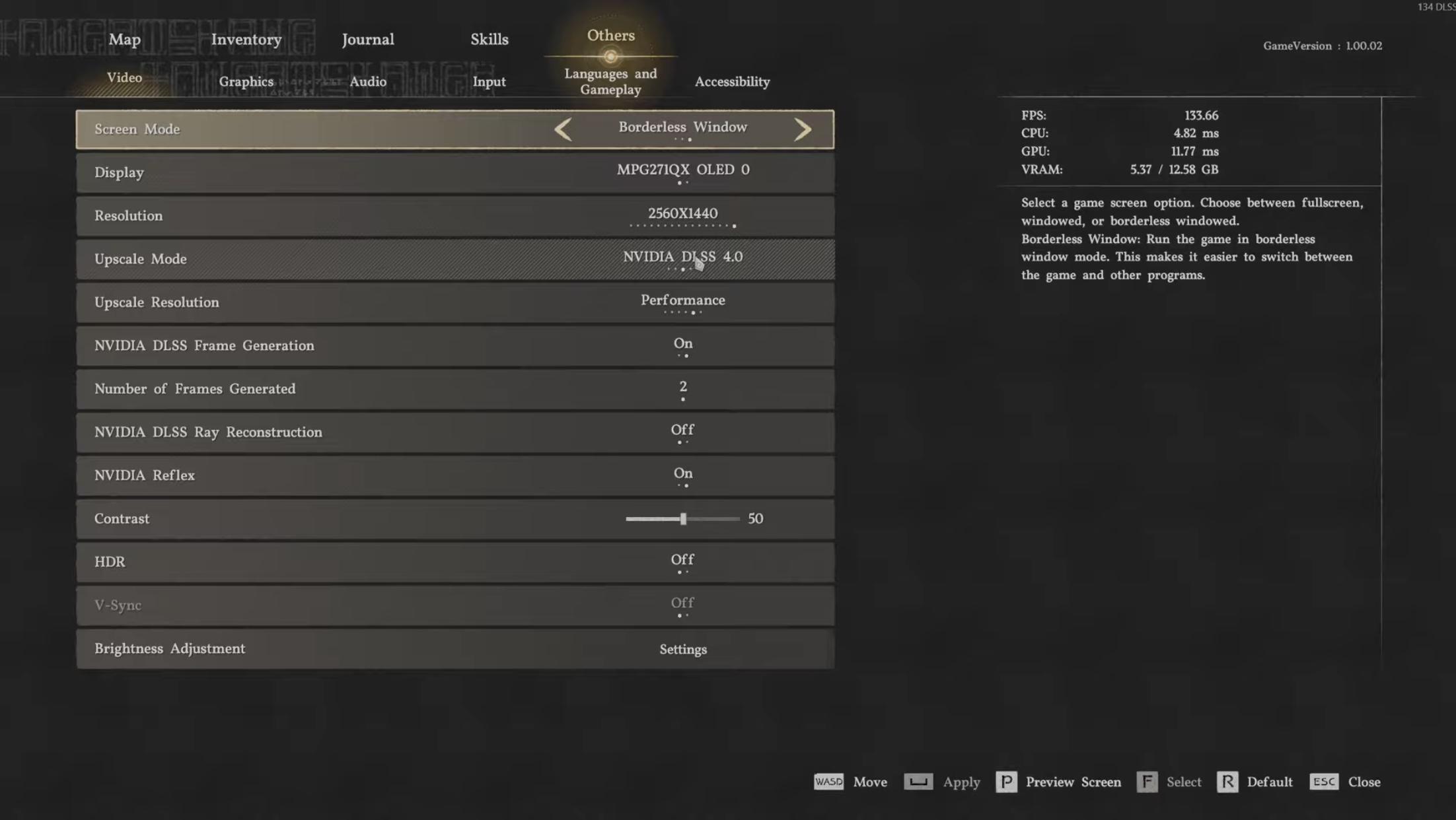
Video Settings
If you are playing on PC, the best place to start is with the settings that affect frame rate the most. Thse settings have a direct impact on how smooth the game feels. The goal is not to lower everything blindly, but to build a stable baseline first and then raise visual settings only if your system has enough headroom.
| Video Setting | Recommended Setting |
|---|---|
| Screen Mode | Fullscreen |
| Resolution | Native Monitor Resolution |
| Upscale Mode | DLSS or FSR |
| Upscale Resolution | Balanced |
| Frame Generation | Enabled (if supported) |
| NVIDIA Reflex / AMD Anti-Lag | On |
| V-Sync | Off |
These settings give you a strong starting point for performance. Native resolution keeps the image sharp, while Balanced upscaling helps recover lost frames without making the game look too soft. Frame Generation can improve smoothness further on supported hardware, and low-latency features help keep the controls responsive.
2. Best PC Graphics Settings for Crimson Desert
The graphics menu is where performance can swing the most. Some settings improve image quality with a relatively small cost, while others can lower frame rate fast if pushed too high. A balanced setup usually keeps world detail strong while cutting back the heavier options that do the most damage to performance.
| Graphics Setting | Recommended Setting |
|---|---|
| Model Quality | High |
| Texture Quality | High (or based on VRAM) |
| Shadow Quality | Low |
| Ray Tracing | Off |
| Lighting Quality | High |
| Reflection Quality | Medium |
| Advanced Weather Effect | Off |
| Water Quality | High |
| Foliage Density | High |
| Volumetric Fog Quality | Low |
| Effect Quality | Medium |
| Simulation Quality | Medium |
| Post-Processing Effects | Medium |
This setup keeps the game looking good without leaning too hard on expensive visual effects. Model Quality, Lighting Quality, and Foliage Density are worth keeping high because they preserve a lot of environmental detail. On the other hand, settings like Shadows, Ray Tracing, and Volumetric Fog are better kept lower if you want consistent performance.
3. Crimson Desert Best PC Settings for Smooth Combat
Crimson Desert is not the kind of game where raw visual quality matters more than control feel. Combat depends on timing, movement, and fast reactions, so stable frame pacing is more important than squeezing out the most demanding effects. These settings helps you make the game feel better in actual fights.
| Performance Feature | Recommended Setting |
|---|---|
| Frame Generation | Enabled |
| NVIDIA Reflex / AMD Anti-Lag | On |
| V-Sync | Off |
| Shadow Quality | Low |
| Volumetric Effects | Low |
If combat starts to feel inconsistent, these are the first settings worth checking. Lowering heavier visual effects reduces the chance of sudden frame drops during larger encounters, while lower input latency helps dodging, camera movement, and attack timing feel tighter.
4. Best Audio Settings for Crimson Desert
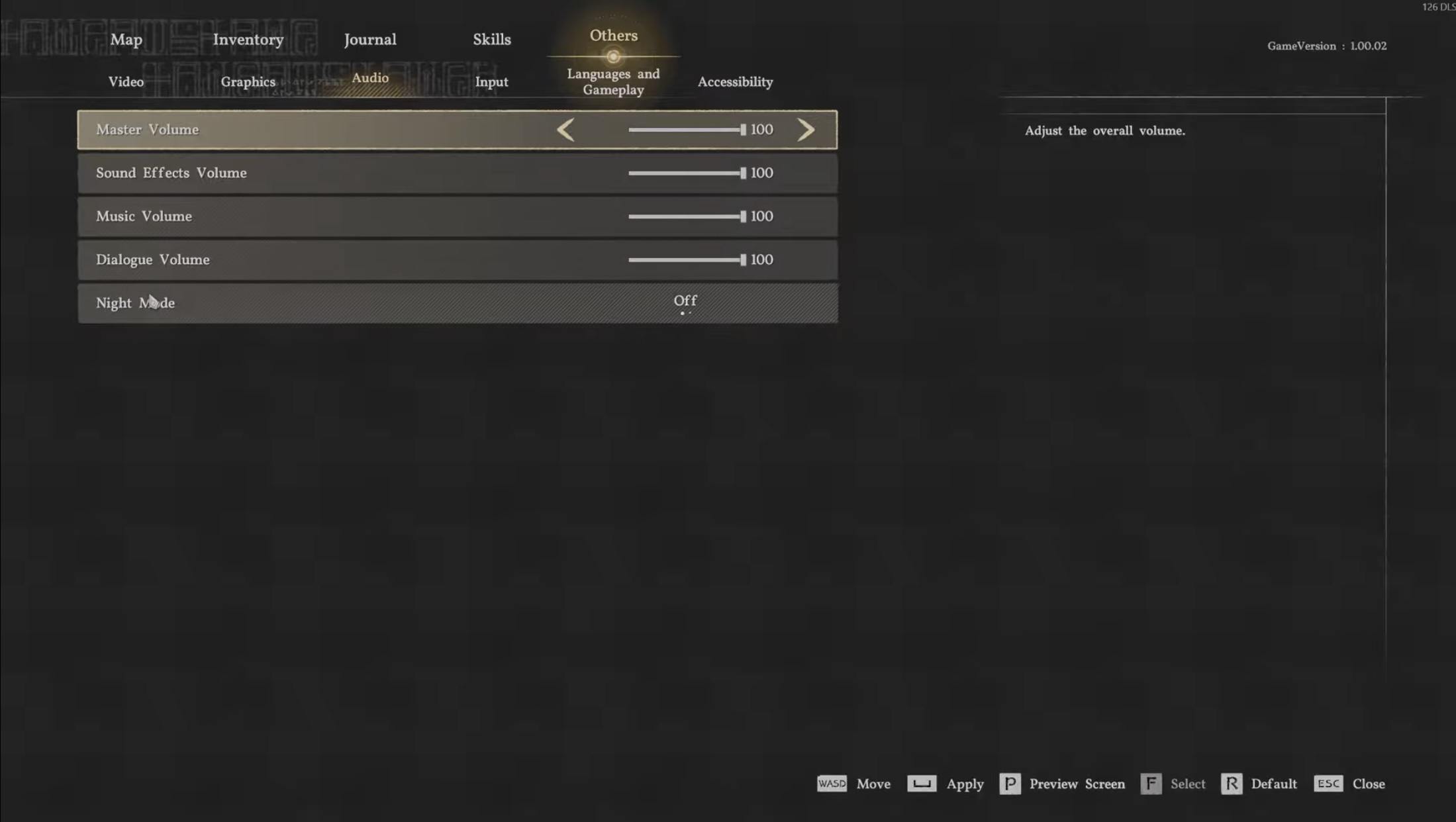
Audio Settings
Audio settings are much more personal than graphics settings, so there is no single perfect preset for everyone. The best approach is to keep the main sliders where they feel comfortable for your setup.
| Audio Setting | Recommended Setting |
|---|---|
| Master Volume | Player Preference |
| Sound Effects Volume | Player Preference |
| Music Volume | Player Preference |
| Dialogue Volume | Player Preference |
| Night Mode | Off |
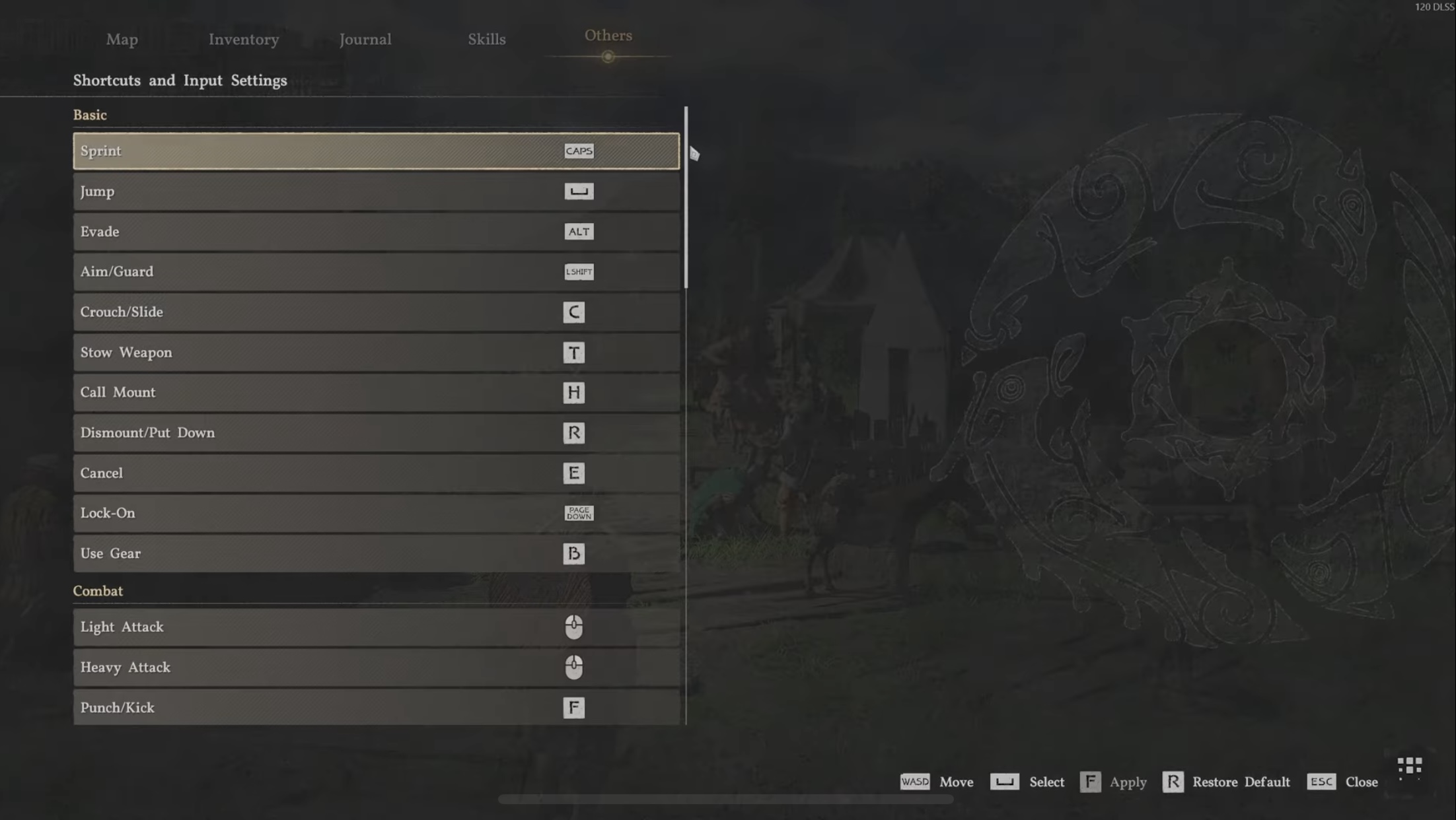
5. Best Keyboard Control Settings for Crimson Desert
Keyboard Settings
Crimson Desert includes many keyboard inputs for movement, combat, skills, menus, and interactions.
| Action | Recommended Binding |
|---|---|
| Move | W, A, S, D |
| Run | Left Shift |
| Sprint | Left Shift x2 |
| Jump | F |
| Roll/Evade | Space bar |
| Aim/Guard | Left Ctrl |
| Crouch/Slide | C |
| Stow (Sheathe) Weapon | T |
| Call Mount | H |
| Dismount/Put Down | R |
| Cancel | E |
| Lock-On | Caps |
| Use Gear | B |
| Light Attack | Left click |
| Heavy Attack | Right click |
| Punch/Kick | Y |
| Aim | Q |
| Mark Focused Shot | Right click |
| Skill (Focus) | X |
| Skill (Axiom Force) | Tab |
| Skill (Force Palm) | Middle mouse button |
| Skill (Turning Flash) | Left click + Right click |
| Skill (Shield Bash) | Left Ctrl + Right click |
| Skill (Stab) | Left Shift + Right click |
| Skill (Evasive Slash) | Left Alt + Left click |
| Skill (Spinning Slash) | Left Shift + Left click |
| Skill (Vault) | Space bar + Left click |
| Skill (Throw) | F + Left click |
| Skill (Lariat) | F + Right click |
| Skill (Binding Flash) | Left Ctrl + Left click |
| Focus Skill (Binding Flash) | Left Ctrl |
| Skill (Quick Swap) | Z |
| Skill (Imbue Element) | V |
| Skill (Flame) | 1 |
| Skill (Frost) | 2 |
| Skill (Lightning) | 3 |
| Skill (Wind) | 4 |
| Main Menu | Esc |
| Open Comrade Quick Slot | F1 |
| Open Equipment Quick Slot | F2 |
| Open Skill and Food Quick Slot | F3 |
| Interaction 1 | E |
| Interaction 2 | R |
| Interaction 3 | T |
| Interaction 4 | G |
| Previous | Q |
| Next | E |
| Push | Left click |
| Pull | Right click |
| Aim (Interaction) | Right click |
| Fire | Left click |
6. Best Controller Settings for Crimson Desert on PC
The controller layout in Crimson Desert follows a fixed default scheme. Showing both versions together helps you quickly see how each button maps across the two controllers.
| Action | Xbox | PS5 |
|---|---|---|
| Move | Left stick | Left stick |
| Change Camera | View button | Touchpad |
| Menu | Menu button | Menu button |
| Heavy Attack | RT | R2 |
| Light Attack | RB | R1 |
| Kick | Y (hold) | Triangle (hold) |
| Punch | Y | Triangle |
| Roll | B | Circle |
| Evade | B x2 | Circle x2 |
| Jump | X | Square |
| Run | A | Cross |
| Sprint | A x2 | Cross x2 |
| Move Camera | Right stick | Right stick |
| Force Palm | Right stick button | R3 |
| Aim/Shoot Ranged Weapon | LT | L2 |
| Guard/Aim/Lantern | LB | L1 |
| Axiom Force | Left stick button (hold) | L3 (hold) |
| Crouch/Slide | Left stick button | L3 |
| Call Mount | D-Pad Up | D-Pad Up |
| Quick Slot 1 (Comrade) | D-Pad Up (hold) | D-Pad Up (hold) |
| Sheathe Weapon | D-Pad Left | D-Pad Left |
| Quick Slot 2 (Gear) | D-Pad Left (hold) | D-Pad Left (hold) |
| Eat Food | D-Pad Right | D-Pad Right |
| Quick Slot (Food) | D-Pad Right (hold) | D-Pad Right (hold) |
| Lock-On | D-Pad Down | D-Pad Down |
7. Crimson Desert PS5 Settings for Better Gameplay Feel
Beyond the main display mode, a few comfort settings can make the game feel more natural on console. These changes are small, but they help with clarity, controller feel, and overall movement during long play sessions.
| Gameplay Setting | Recommended Adjustment |
|---|---|
| Motion Blur | Off |
| Camera Sensitivity | Medium-High |
| Controller Vibration | Player Preference |
| HDR | Enabled if Supported |
These Crimson Desert settings for PS5 are meant to improve feel rather than force a one-size-fits-all preset. Keeping motion blur off and raising camera sensitivity slightly usually gives the cleanest improvement right away, while vibration and HDR come down more to personal preference and display setup.
8. Final Best Settings Recommendation
The best setup in Crimson Desert comes down to one simple rule: prioritize smooth gameplay first, then add more visual quality only if your system can handle it. PC players should build around stable frame rate, low input delay, and reduced heavy effects. PS5 players should lean toward performance mode and a cleaner image for better combat response.
For more guides covering exploration, weapons, bosses, artifacts, and secrets, visit our Crimson Desert Guide Hub.